

This is a common problem with Act! running sync databases or sole practitioners with laptops running Act!. These are the 2 means to reset the SQL service so the Act! database opens as expected.
Option 1 - Manually Restart SQL Service
Step 1
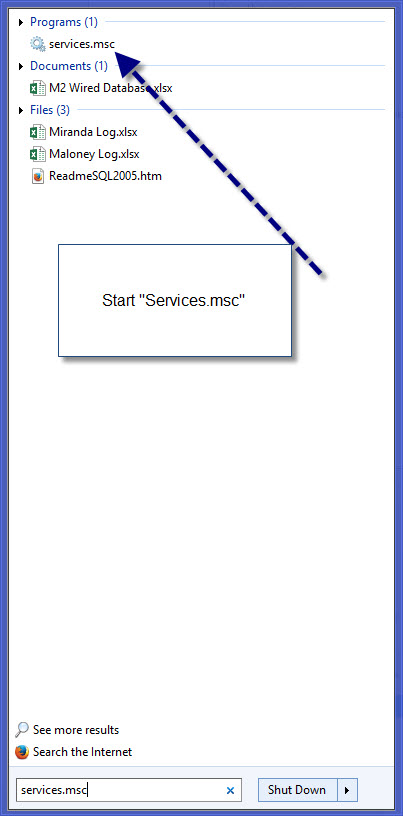
Exit Act! first. Then, from the PC, Start -> Run-> services.msc
Step 2
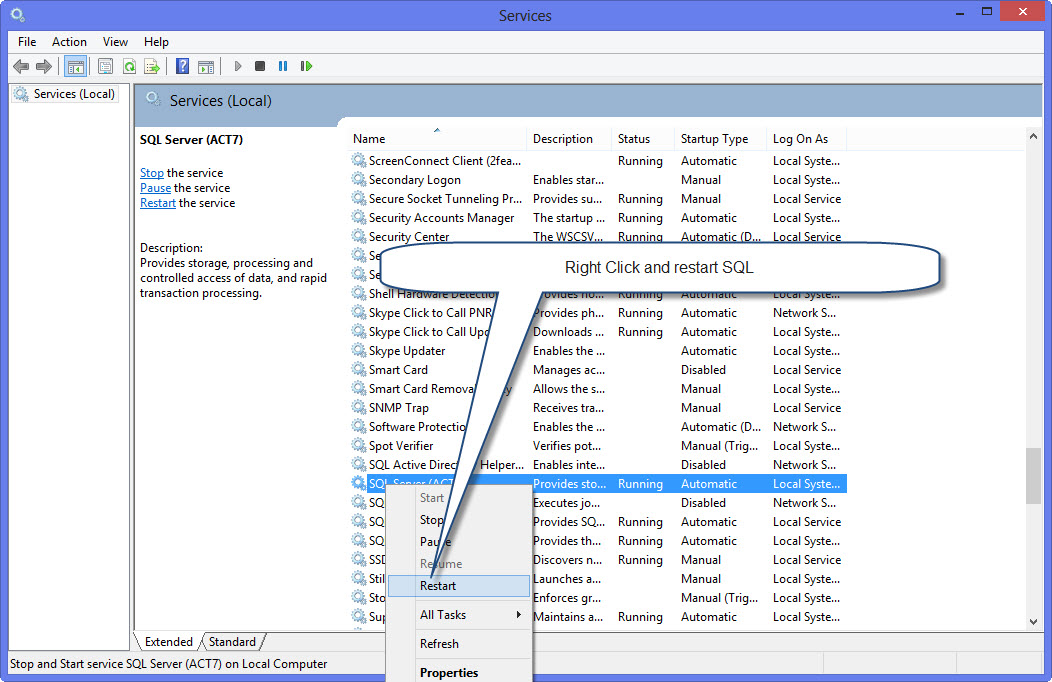
Right Click on SQL Server (ACT7) and select restart
Option 2 - For Windows 10+ Users
Step 1 – Watch this video on how to change the SQL service to a delayed start. In some cases, Windows doesn’t start SQL. The delayed start option delays Act! startup for a couple minutes; however, Act! will open consistently.
